
How to Sideload VR Mods and Ports on Quest
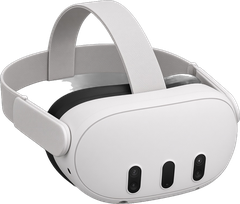
Most Quest VR ports and mods aren't on the Meta store, so you sideload them. Here's the whole thing step by step: Developer Mode, SideQuest, installing an APK, where mod files go, and how to update or remove them. Every step ends with a link to the official guide, because those stay up to date.
Turn on Developer Mode
Sideloading needs Developer Mode, and you switch it on from your phone, not the headset. First your Meta account has to join or create a developer team on the Meta Horizon Developer Dashboard and be verified, with SMS two-factor or a payment method (PayPal doesn't count). You also need to be at least 18. Then open the Meta Horizon app, tap the headset icon, tap your headset, tap Headset Settings, then Developer Mode, and flip it on. If you can't find the toggle, check that your account is on a developer team and verified.
Meta: device setup and Developer Mode ↗

Moddy saysMeta says Developer Mode is meant for running, debugging and testing apps, so give Meta's guidelines a read before you switch it on.
Install SideQuest and connect your headset
SideQuest is the easy button. Follow SideQuest's setup guide on your computer, and plug the headset in with a USB-C cable that carries data. Meta says a charge-only cable won't work. Now put the headset on. When it asks you to allow USB debugging, pick "Always allow from this computer".
SideQuest: official setup guide ↗
Moddy saysA charge-only cable won't work. Use a USB-C cable that carries data.
Install an APK
Most Quest mods come as an APK file. SideQuest can install it for you, and its setup guide shows how. If you're comfy with a terminal, adb does the same job:
adb devices
adb install -r yourmod.apk
The first line should list your headset. The -r means "reinstall and keep my data", which is handy for updates.
Android Developers: adb ↗ SideQuest: official setup guide ↗
Where mod files go
Lots of mods need data from the original game sitting next to them, and that part's on you. Two folders matter. Android/obb/<package name>/ is for big data files, and Android/data/<package name>/ is the other common spot. The mod's own page tells you which folder and what the files should be called, so follow it exactly. If the folder isn't there yet, the mod's page will say how to set it up. Then copy your files over with SideQuest's file manager, with Windows Explorer (the Quest shows up like a phone), or with adb push. And yep, only files from a game you own.
adb push mygamefiles/ /sdcard/Android/obb/com.example.mod/Android Developers: OBB expansion files ↗ Android Developers: adb ↗
Moddy saysMake sure to read the Official Instructions. Each mod's page says exactly which folder its files go in.
Update or uninstall
Updating is just installing the new APK over the old one. The -r option keeps the app's data, but if you care about your saves, copy the mod's Android/data folder somewhere safe first. To remove a mod, uninstall it in SideQuest, or run adb uninstall with the package name. Not sure what it's called? This lists everything you've installed yourself:
adb shell pm list packages -3
adb uninstall com.example.modPopular Quest mods to try
-
 Mario Kart Wii
WiiCompiled VRby iChris4 (w/ heurazy)
QUESTFreeActiveFull MotionFiles: MediumUFVR Grade A
-
 Super Mario 64
SM64 Co-Op DX VR Standalone (physics-based)by FullDiveGames
QUESTFreeExperimentalFull MotionFiles: MediumUFVR Grade B
-
 Halo: Combat Evolved
Halo CE Quest VR + Android (OpenCE-based)by moistman42069
QUESTFreeExperimentalFull MotionFiles: HardUFVR Grade B
-
 Gran Turismo 3 A-Spec
GT3 Revisitedby matt-pulsipher
QUESTFreeExperimentalGamepadFiles: MediumUFVR Grade C

More in the best Quest VR mods list and the Quest directory.